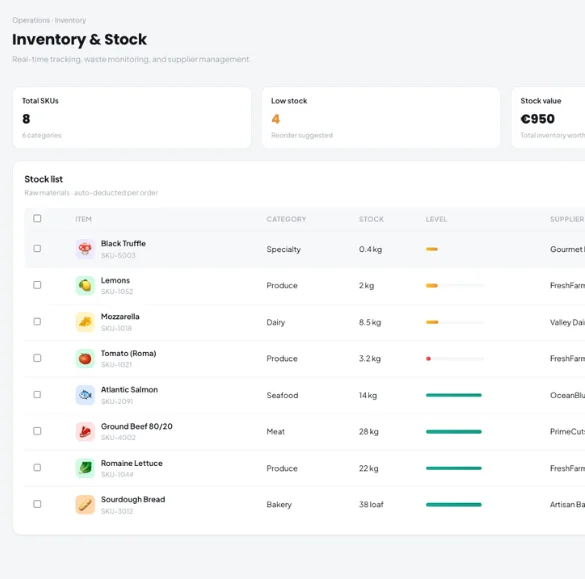
Automate the work of turning supplier invoices, receipts, photos, spreadsheets and Italian FatturaPA e-invoices into structured inventory data. Kappino uses AI-assisted extraction, review, purchase-document tracking, inventory analytics, and forecasting to help restaurant teams process stock information with less manual entry.
Kappino brings the repetitive parts of inventory data processing into one AI-assisted workflow. Upload a supplier document, review what the system extracted, resolve issues, and approve the information before it updates inventory.
AI Document Scanner
Upload or photograph supplier invoices, receipts and delivery notes — JPG, PNG, HEIC, PDF, XLSX, CSV, or FatturaPA XML and signed .p7m e-invoices, up to 12 MB. Kappino’s AI-assisted pipeline extracts the supplier, products, quantities, costs, tax and document details for review.
Review Before Import
Review confidence, duplicate warnings, reconciliation results, extracted line items, VAT information, and reader disagreements before approving an import.
Purchase Documents
Keep imported purchase documents organized with supplier, invoice number, date, line count, total, and import status in one place.
AI Forecasting
Review next week’s predicted demand, suggested purchase quantities, weekly usage patterns and confidence for each item, based on the last 90 days of consumption.
Italian E-Invoices Read Exactly
If your suppliers send FatturaPA e-invoices, Kappino reads the XML directly instead of scanning it, so quantities, prices and VAT come through exactly as the supplier issued them.
XML and Signed .p7m Files
Upload FatturaPA XML files, digitally signed .p7m files and multi-invoice batches. They are labelled “Italian e-invoice (XML)” in the review screen.
No Recognition Errors
Because the figures come from the supplier’s structured data, nothing has to be read from an image or guessed.
Credit Notes Kept Out
Credit notes are refused, so returned goods are never added to your stock by mistake.
From Supplier Document to Inventory Update
Kappino’s AI Inventory workflow is designed around a review-first process. The system can read incoming inventory documents, surface what it found, highlight potential problems, and let your team approve the result before the inventory is updated.
01
Upload the Document
Drag and drop an invoice, receipt, photo, spreadsheet or e-invoice into the Scanner, or open your device camera.
02
Extract the Data
AI-assisted readers identify supplier information, invoice details, products, quantities, costs, tax information, and other available fields.
03
Review the Result
Open the Review Queue to inspect confidence, duplicate warnings, document totals, extracted lines, and reconciliation messages.
04
Correct Missing or Uncertain Data
Edit supplier or document details, update extracted lines and expiry dates, skip a line, answer pack-size questions such as “How many units are in one pack?”, or add an invoice line when the reader missed something.
05
Approve & Import
Once the document has been checked, choose Approve & import. Each line is added to stock, matched to an existing item or created as a new one, and the purchase is also recorded in Restaurant Expenses.
Review AI-Extracted Inventory Data Before Import
AI extraction should not mean blind importing. Kappino shows the information it read from a document and gives the team a review layer before the purchase is imported. This makes it possible to check the supplier, invoice number, date, totals, line items, tax calculations, and other extracted values before they become part of the inventory workflow.
The review screen also protects you from the most common mistakes: it reconciles line totals against the document totals, warns when the same file or a similar invoice was already uploaded, and lets you read a document again to compare the result with what was imported.
Duplicate-file and duplicate-invoice warnings, with a link to the existing import
Pack sizes learned per supplier, so “6 × 1 L” is counted correctly next time
Supplier article codes remembered, so future deliveries match automatically
Trusted suppliers (off by default): auto-import high-confidence scans with no uncertain lines
Automate Inventory Work Without Losing Control
Less Manual Data Entry
Turn supported invoices, receipts, photos, and spreadsheets into structured information instead of entering every field from scratch.
Earlier Error Detection
Use confidence indicators, reconciliation checks, duplicate warnings, and reader-disagreement messages to identify information that needs attention.
Cleaner Purchase Records
Keep supplier, invoice, date, line count, totals, and status together in the imported purchase-document history.
Faster Replenishment Planning
Use forecast views showing predicted demand, suggested buys, weekly patterns and confidence to support purchasing decisions.
Clearer Cost Visibility
Review monthly purchasing, consumption trends, COGS %, cost increases, supplier intelligence and the price history of every item from the analytics workspace.
Human Approval Where It Matters
Every scan waits for review by default. If you trust a supplier, you can switch on auto-import for that supplier only — and even then, only high-confidence scans with no uncertain lines skip the queue.
Inventory Analytics That Show Where the Money Goes
The Analytics tab turns approved purchases, sales consumption and waste into a clear picture of your stock.
Cost of Goods Sold
Track COGS % alongside monthly purchasing and consumption trends.
Item Price History
Click an item to see how its purchase price has moved over time, supplier by supplier.
Overstock & Dead Stock
Spot items with too many days of cover or no recent use, before the money stays tied up on the shelf.
Expiry Watch
See items expiring in the next seven days, and those already expired, so they are used or written off in time.
Waste by Reason
See how much is lost to expired, burned, damaged or other waste, with the value of each reason.
Supplier Intelligence & Stock Alerts
Review spend and delivery cadence by supplier, low-stock reorder suggestions and cost increases. Admins and managers can also get critical stock alerts by email.
Kappino packages
Simple pricing for every restaurant stage.
Choose the package that fits your restaurant operations and business needs.
Starter
Essential tools for small restaurants, cafés, and single-location businesses.
Prices are for business customers and exclude VAT and other applicable taxes, which are shown on your invoice. Prices per month. Final pricing may vary depending on setup, integrations, support requirements and business needs. Not sure which plan fits? Book a personalised demo
Frequently Asked Questions
What documents can Kappino’s AI Inventory read?
You can upload photos (JPG, PNG, HEIC), PDFs, Excel (XLSX) and CSV spreadsheets, and Italian FatturaPA e-invoices as XML or signed P7M files, up to 12 MB each. You can also open your device camera from the Scanner. Photos and scanned PDFs are read with OCR. E-invoices are read directly from the supplier’s structured data, so the figures are exact.
Does the AI update my stock automatically?
Not by default. Every scan waits in the Review Queue, where you check the supplier, line items, quantities and costs, correct anything that is wrong, then choose Approve & import or Reject. Rejecting leaves your inventory unchanged. You can turn on auto-import for individual trusted suppliers, but only high-confidence scans with no uncertain lines skip the review.
How does it catch mistakes before anything is imported?
The review screen checks the invoice arithmetic and reconciles the line totals against the document totals, so a missing or misread line stands out. It warns you when the same file or a similar invoice was already imported. It asks how many units a pack contains when that is unclear. It refuses credit notes so that returned goods are never added to stock.
What happens after I approve a scan?
Each approved line is added to stock through the inventory ledger. It is matched to an existing item or created as a new one. The invoice is saved under Documents with its supplier, number, date and totals, and the purchase is also recorded in Restaurant Expenses. Kappino remembers each supplier’s article codes, so later deliveries match automatically.
What insights does AI Inventory give beyond scanning?
The Analytics tab shows monthly purchasing, consumption trends, cost of goods sold, waste by reason, supplier spend, items expiring within seven days, cost increases, overstock and dead stock, and low-stock reorder suggestions, with price history per item. The Forecast tab predicts next week’s ingredient use from recent sales and suggests how much to buy. Critical stock alerts can also be emailed.